Aerial Pipeline
This guide demonstrates how to set up and execute aerial data processing pipelines using drone imagery. It covers workspace creation, pipeline configuration, orthomosaic generation, and trait extraction steps.
Video Tutorial
Watch the full guide on Guidde
1. Creating a Workspace
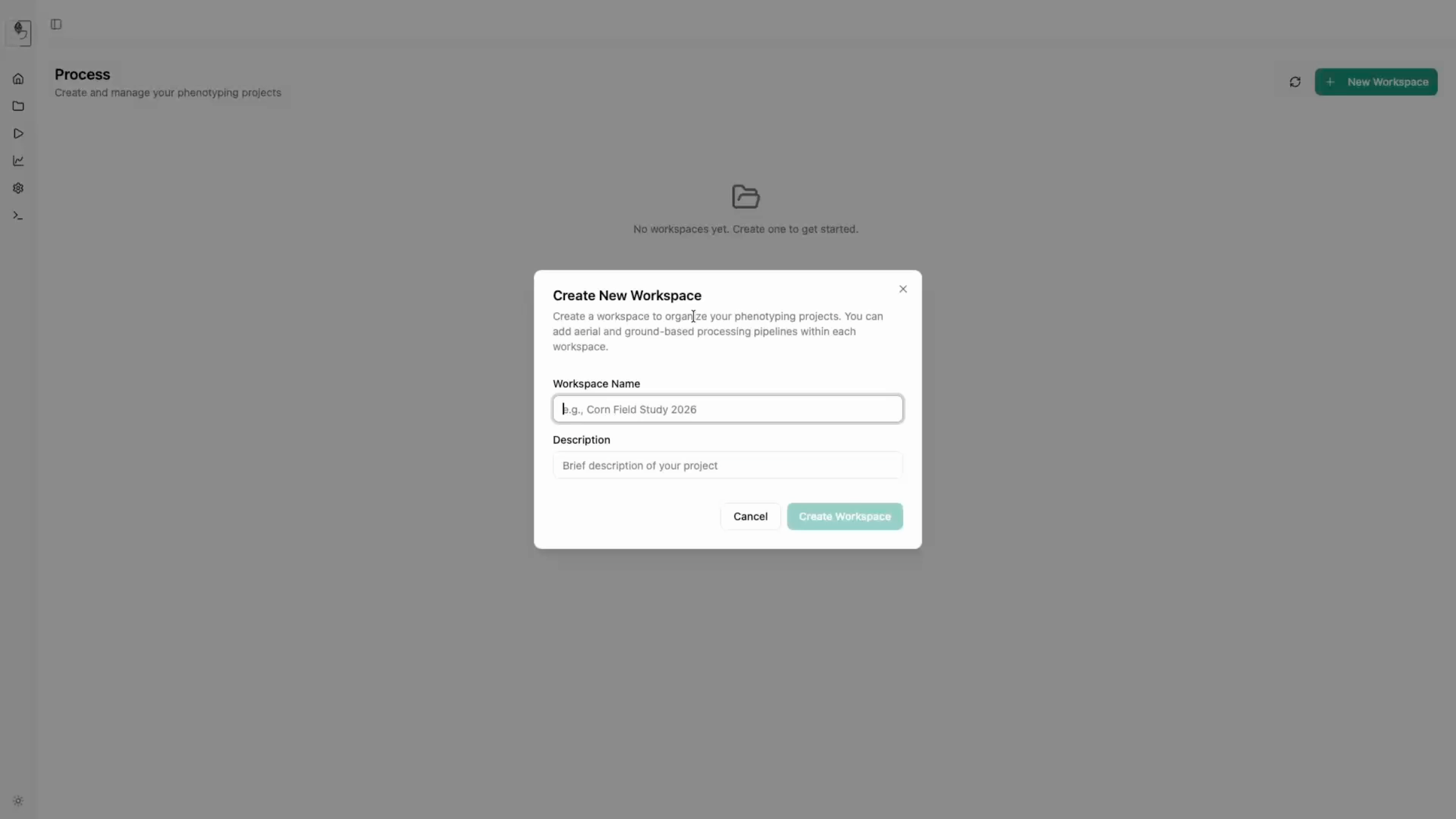
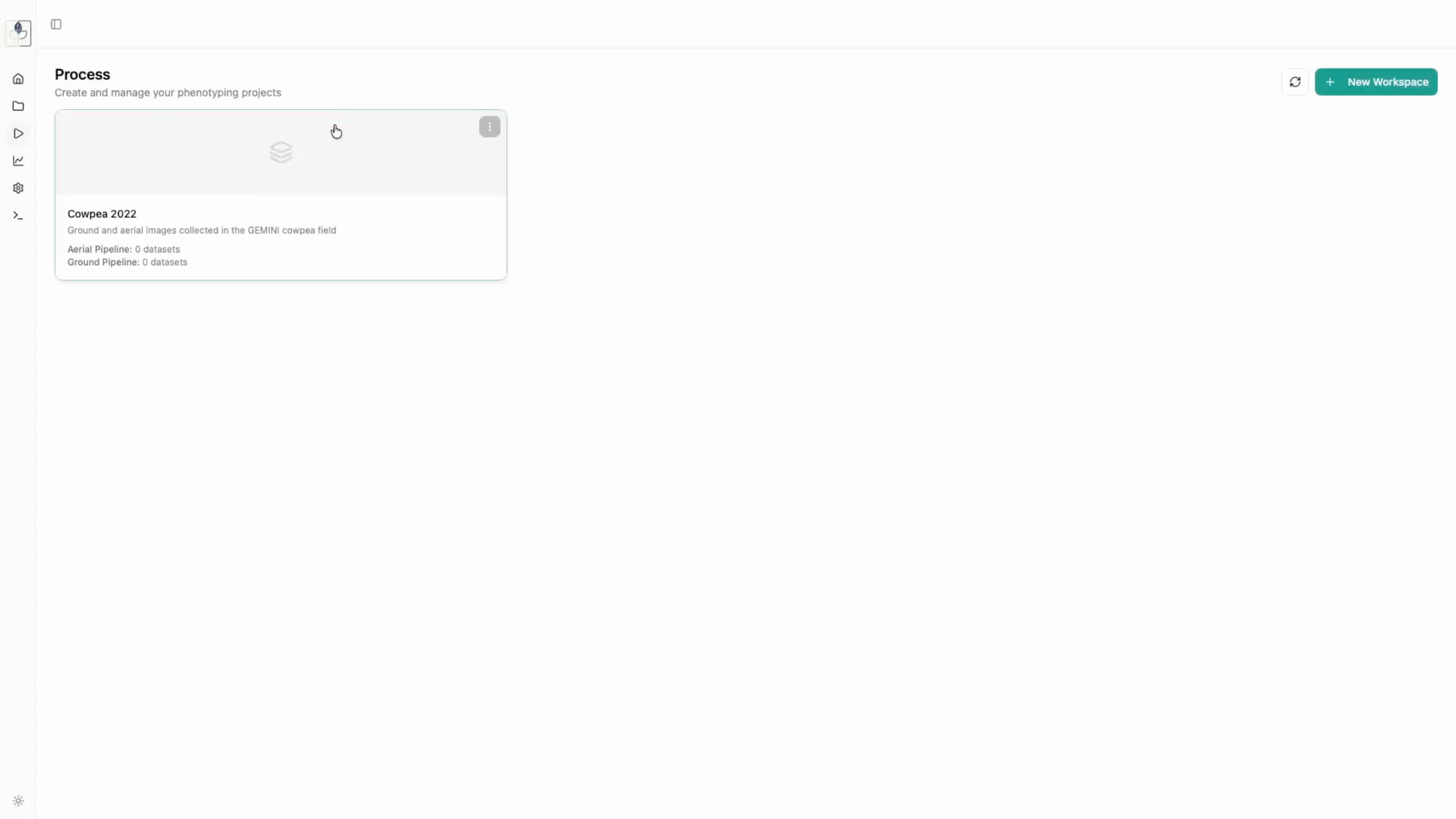
To begin processing, navigate to the Process tab. 1. Create a new workspace (e.g., "Cowpea 2022") and add a brief description. 2. Click on your newly created workspace to begin pipeline configuration.
- Actions: Navigate to Process -> Create New Workspace -> Enter Details.
2. Configuring the Aerial Pipeline
- Select Aerial Pipeline as the processing type.
- Define your ODM (Open Drone Map) settings. You can choose from pre-selected quality presets (Draft, Standard, High, Ultra) or define custom parameters.
-
Configure Inference Models if you intend to run RoboFlow computer vision tasks for detection or segmentation.
-
Pipeline setup: Select Pipeline type -> Define ODM settings -> Set Inference Models.
3. Execution Steps
Each pipeline run follows a structured sequence:
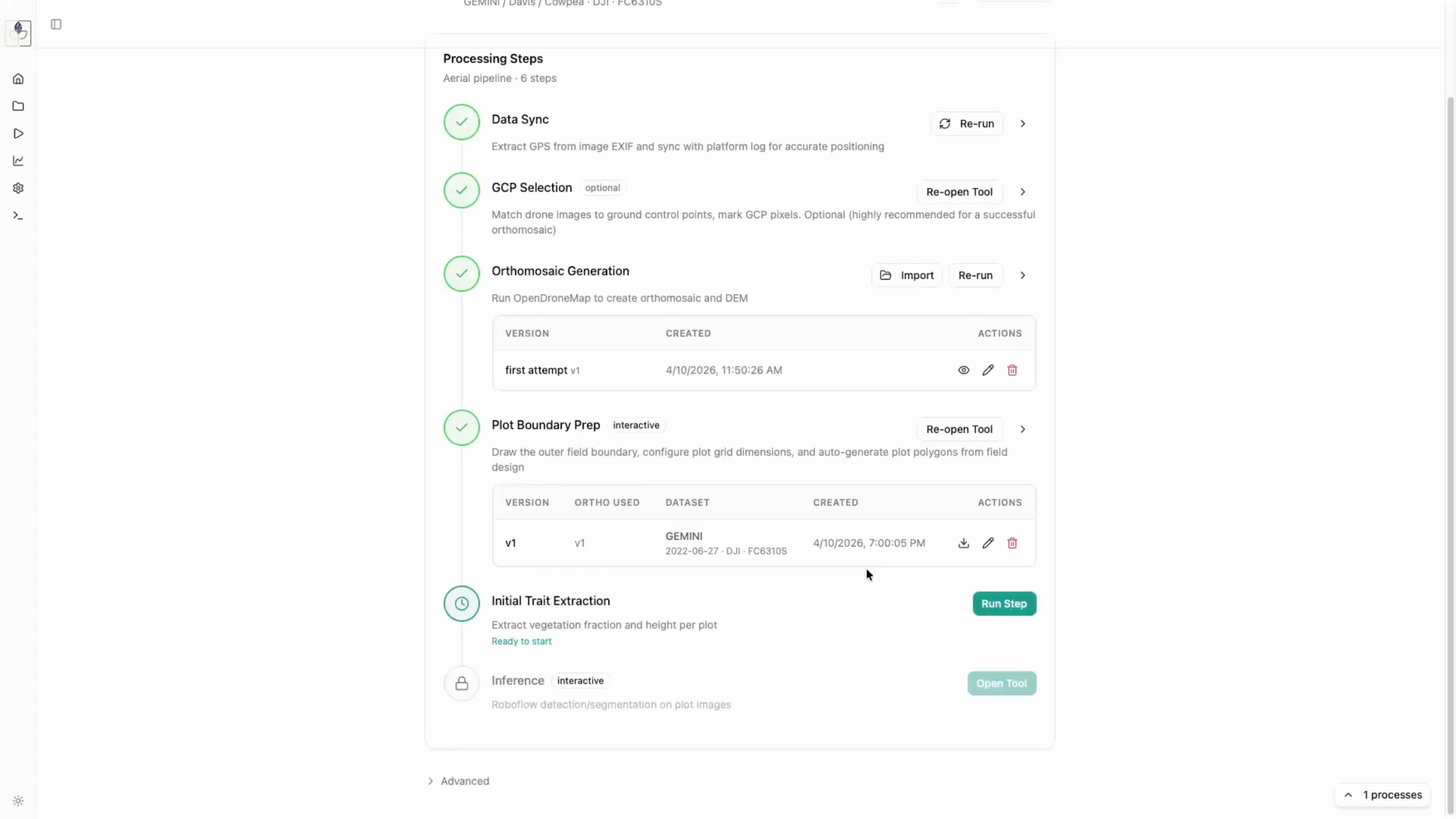
Data Sync
The app extracts GPS metadata directly from the images. Ensure you select Use own metadata to proceed with image metadata or sync from another source if available (timestamp based).
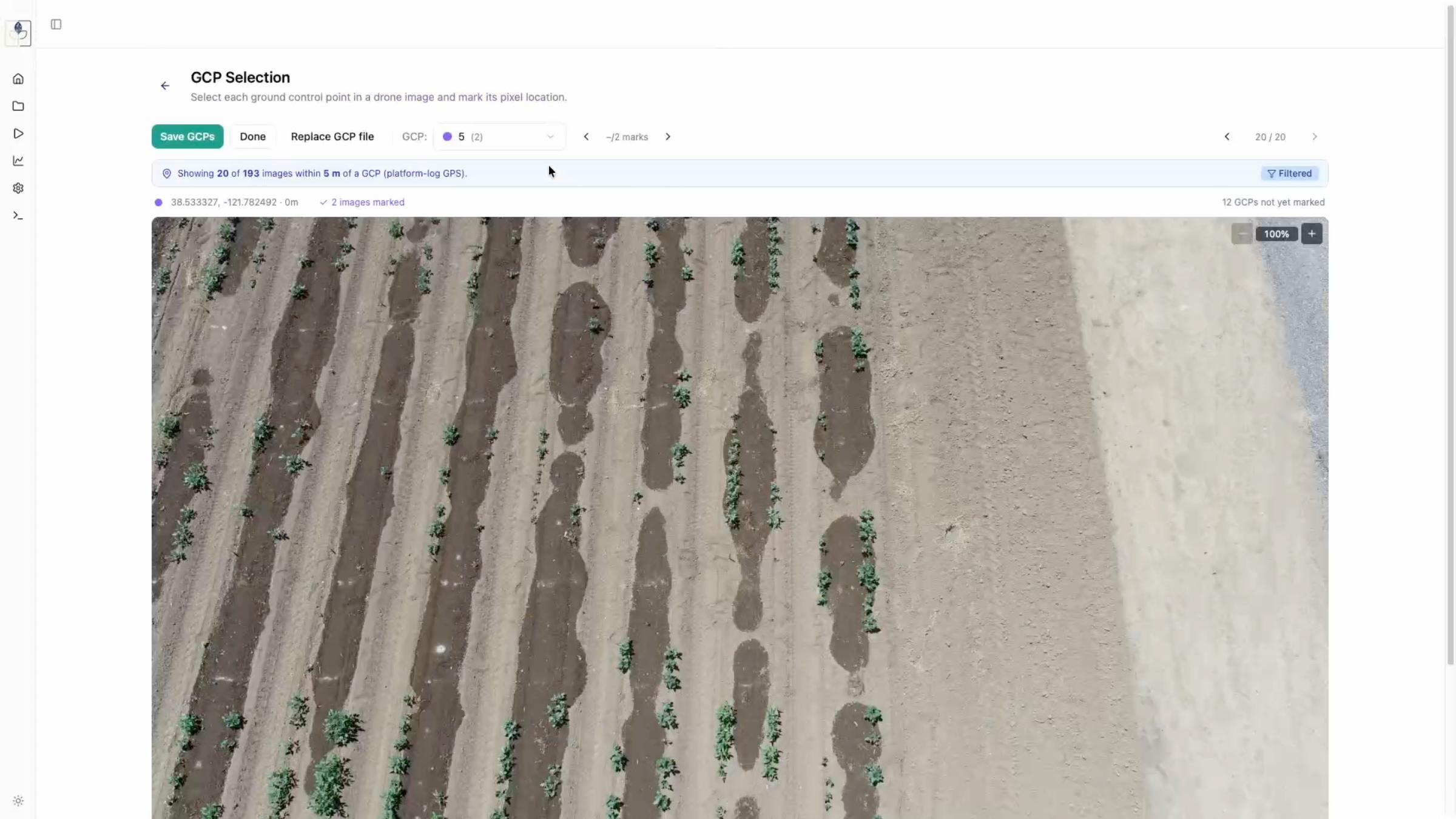
Ground Control Point (GCP) Selection
Matching drone images to GCPs is crucial for accurate orthomosaics.
- Upload your GCP locations (CSV format).
- The tool will automatically filter images close to GCPs.
-
Mark the corresponding GCP in each image to establish spatial alignment.
-
GCP workflow: Upload CSV -> Filter/Select GCPs -> Mark GCPs on images.
Orthomosaic Generation
This step feeds the synced images and GCPs into Open Drone Map. Once finished, you can preview the generated orthomosaic, download a high-resolution version, or export the original TIFF file.
- Results: Preview generated orthomosaic, download TIFF files.
Plot Boundary Preparation
- Upload your field design CSV and map the columns (
row,col,plot,accession). - Define the population boundary around your field.
-
Generate the plot grid and align the individual plot boundaries with the orthomosaic. You can move, resize, and save these as reusable versions for future dates.
-
Grid tools: Map CSV columns -> Define population boundary -> Generate grid -> Align plot boundaries.
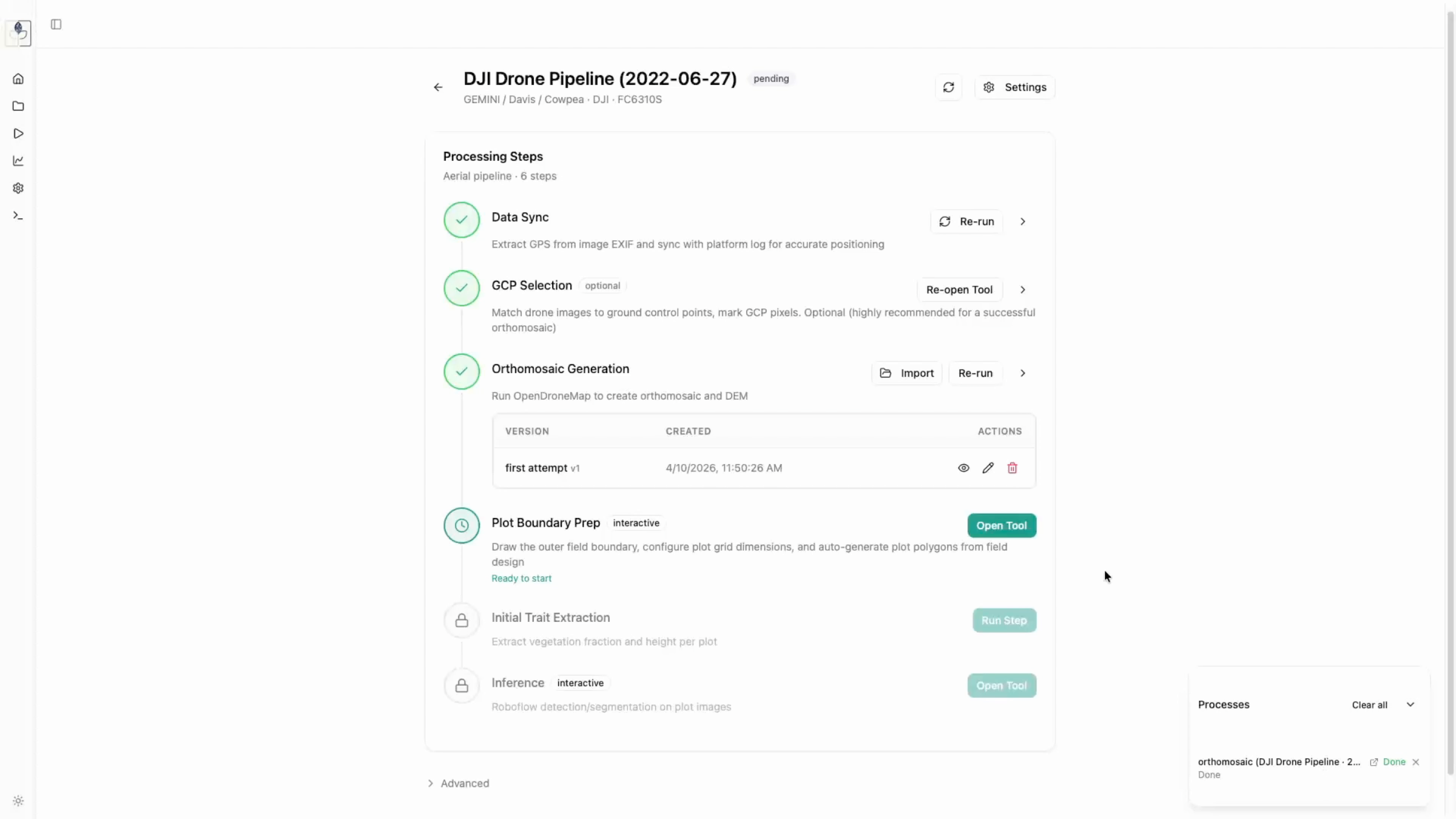
Initial Trait Extraction
Finally, the app crops individual plots and calculates vegetation fraction and canopy height. Use the threshold slider to ensure accurate vegetation extraction before running the full process.
- Crop/Extract: Adjust threshold slider -> Extract traits.